Palette
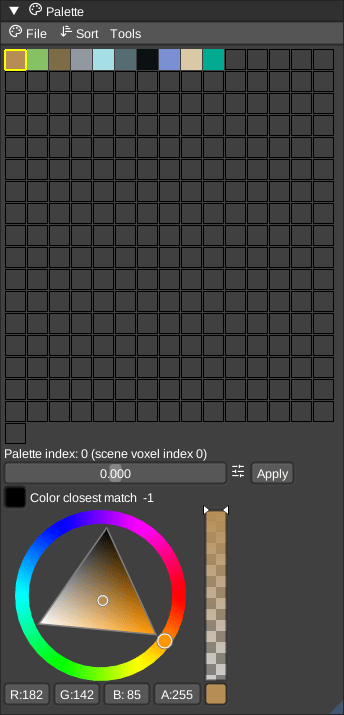
The palette panel visualized the colors for a node. The colors can get re-ordered and changed, as well as drag-and-dropped to change the slots. See the dedicated palette docs for more details.
You can re-order the palette colors by Hue, Saturation, Brightness or CIELab rules.
Direct LoSpec palette import is possible and next to LoSpec you can import or export a lot other palette formats, too.
Selection
- Left Click: Select a single color. This sets the current voxel color for painting.
- Ctrl + Left Click: Toggle selection of multiple colors.
- Shift + Left Click: Select a range of colors from the last selected color to the clicked color.
Drag and Drop
- Reorder: Drag a color to another slot to swap them.
- Sort: Hold Ctrl while dragging to reorder the palette entries without changing the colors of the existing voxels in the scene.
- Import: Drag and drop an image file onto the palette panel to import it as a new palette.
Shortcuts
- Ctrl + C: Copy the hovered color.
- Ctrl + V: Paste the copied color into the hovered slot.
Context Menu
Right-click on a color to open the context menu:
- Color Picker: Adjust the color using the color picker.
- Material Properties: Choose material type (Diffuse / Metal / Glass / Emit / Blend / Media). Changing type applies that type's property defaults. Then adjust metal, roughness, IOR, emit, and the other sliders.
- Remove Alpha: Remove transparency from the color.
- Model from Color: Create a new model containing only voxels of this color.
- Duplicate Color: Duplicate the selected color into a free slot.
- Remove Color: Remove the selected color from the palette.
- Reduce to Selected: Reduce the palette to only the selected colors.
- Randomize Selected Colors: Assign random colors to the selected slots.
- Name: Rename the color.
Normal Palette
The Normals panel selects directions for normal painting. Manual painting changes only the painted voxels; automatic painting calculates directions from nearby voxels.
Changing the normal palette maps existing voxel normals to the closest directions in the new palette. This can introduce approximation because palettes contain different directions. Undo restores both the previous palette and the previous normal indices. Changing the color palette preserves voxel normals.