Viewport
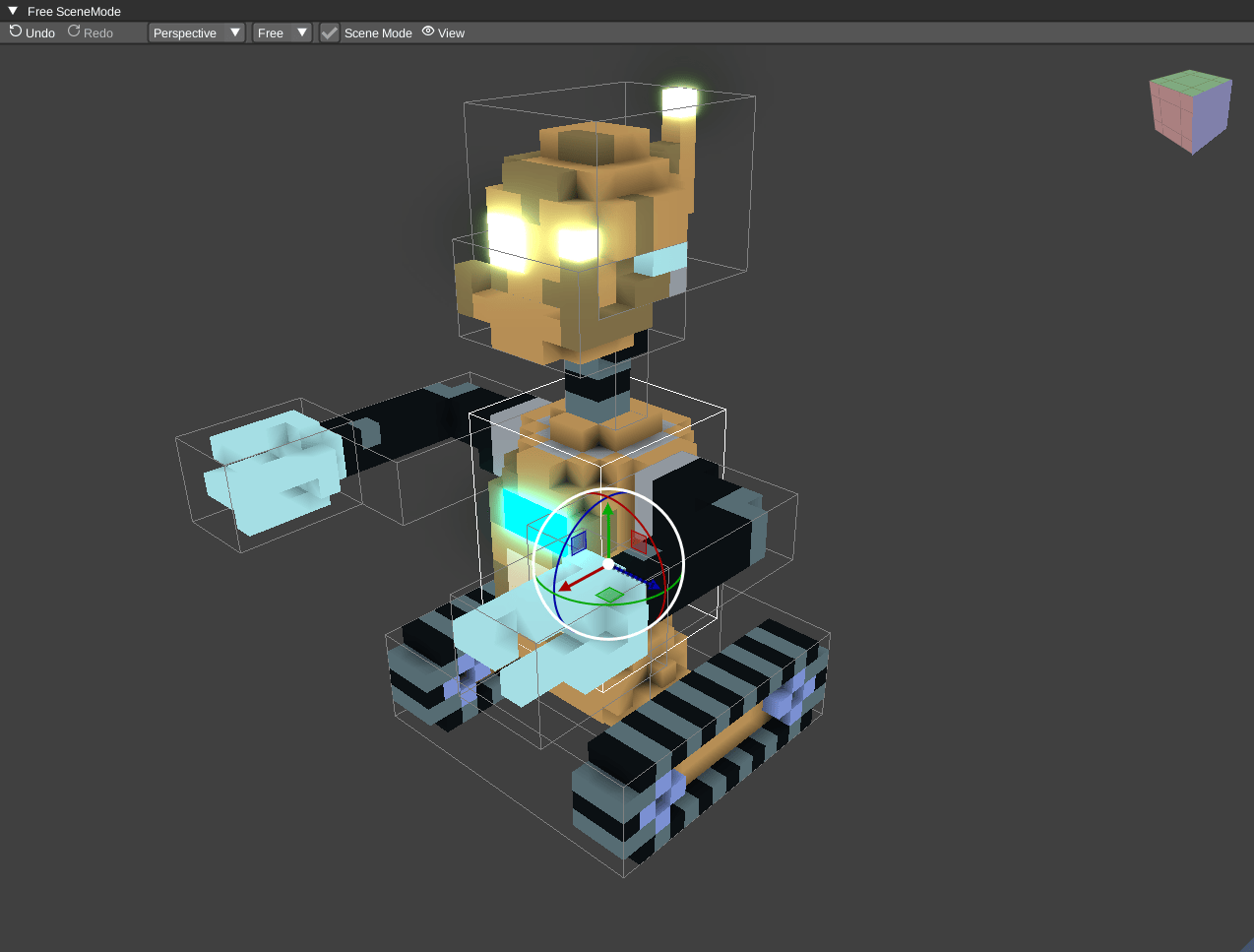
Switch between scene and edit mode to arrange nodes or edit
their voxels. The camera supports perspective, orthographic and
isometric views. You can also animate a camera node or
set its rotation speed (omega) for a rotating model view.
The viewport's View menu controls the grid, gizmos, bounding box, bones, outlines, checkerboard and bloom. The Viewport HUD option shows the current brush or add-node controls in the active viewport. Use the 2D Views panel for editable cross-sections. Use the Pixel art panel for an isometric or orthographic preview of the active model.
Screenshots and video
Choose View > Screenshot in the viewport to save an image. This captures the model or scene without the editor's panels and brush overlays.
Choose View > Video in the viewport to start capture. The save dialog selects
the output format: AVI by default, MPEG2 for a .mpeg filename, or GIF for .gif.
Choose Stop recording from the same menu to finish. Camera rotation and
animated scenes can be captured this way.
To save replayable editing changes instead of rendered frames, use session recording from the main File > Record menu.